
Best VALORANT Settings in 2026
Valorant is so well optimized for gaming that it runs even on a potato PC, but that doesn’t mean you should let it run on just any settings. Here we’ll take a look at the ideal settings for competitive eSports gameplay and go over some of the finer details.
Best VALORANT PC Settings at a Glance
Here’s a quick overview of all the relevant settings you’ll need to play Valorant competitively. These are settings that most pros and high-ranked players use.
|
Category |
Setting |
Recommended Value |
|
Display |
Display Mode |
Fullscreen |
|
Display |
Resolution |
1920x1080 (native) |
|
Display |
FPS Limit |
Unlocked (or cap at monitor Hz + 10%) |
|
Graphics |
Material Quality |
Low |
|
Graphics |
Texture Quality |
Low / Medium |
|
Graphics |
Detail Quality |
Low |
|
Graphics |
UI Quality |
Low |
|
Graphics |
Anti-Aliasing |
MSAA 4x |
|
Graphics |
Anisotropic Filtering |
4x / 16x |
|
Graphics |
VSync |
Off |
|
Graphics |
Vignette / Bloom / Distortion |
Off |
|
Graphics |
Improve Clarity |
On |
|
Performance |
Multithreaded Rendering |
On |
|
Performance |
NVIDIA Reflex Low Latency |
On + Boost |
|
Mouse |
DPI |
800 (most common) |
|
Mouse |
In-Game Sensitivity |
0.3 to 0.5 |
|
Mouse |
eDPI |
280 to 350 |
|
Mouse |
Scoped Sensitivity |
1.0 |
|
Mouse |
Polling Rate |
1000 Hz+ |
|
Audio |
HRTF |
On |
|
Audio |
Speaker Config |
Stereo |
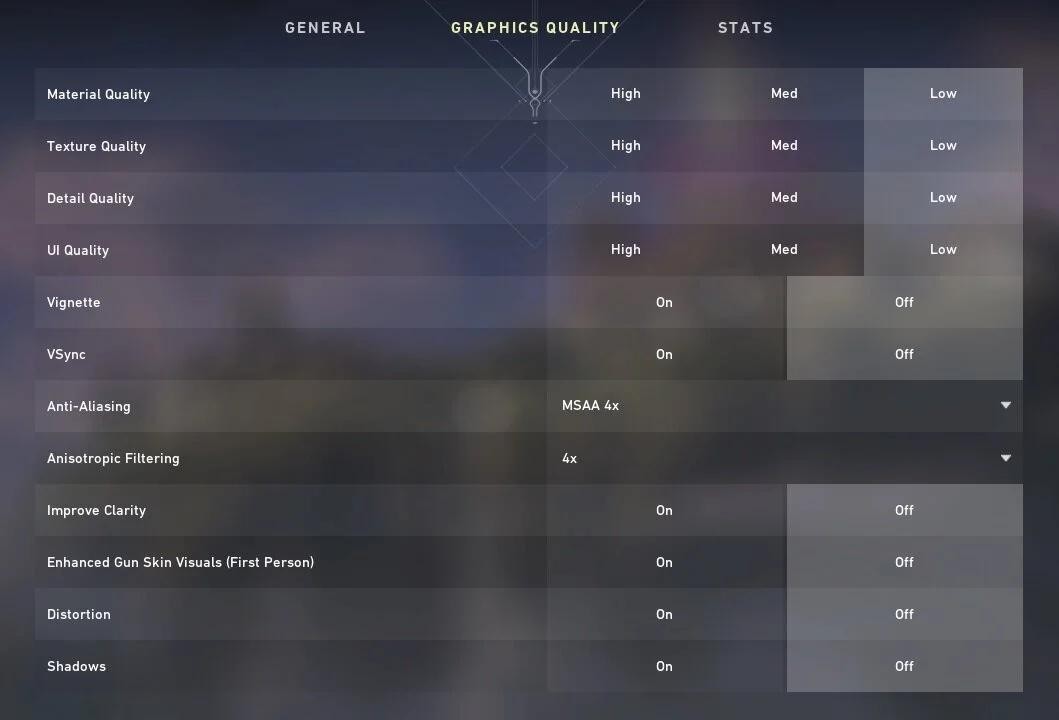
Graphics Settings for the Best Performance
Display Mode Resolution
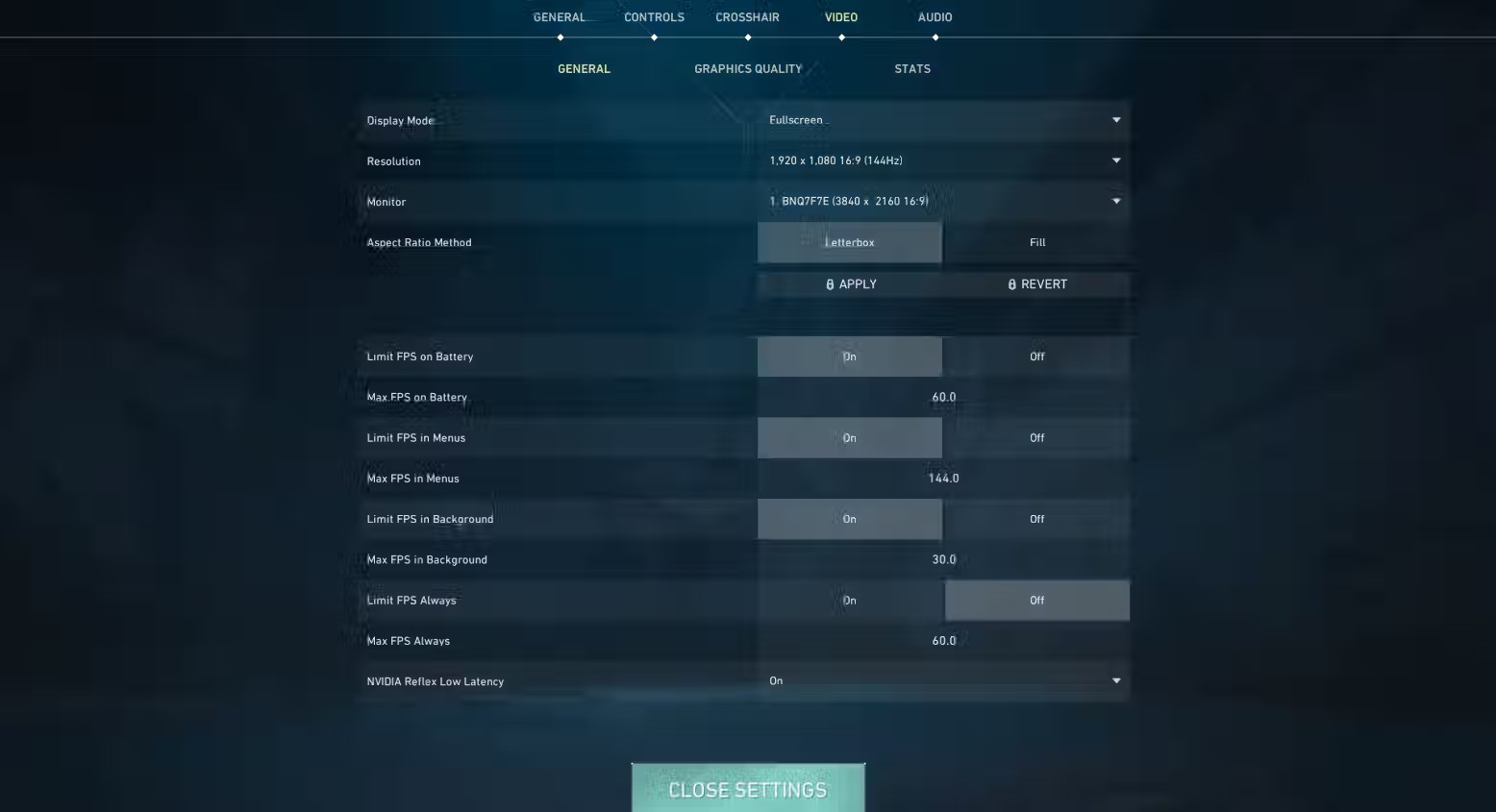
Always use Fullscreen. This ensures that your GPU gains exclusive access to the display output, lowering input lag and ensuring more consistent framerates. Any other modes do not compare. As for resolution, 1920x1080 is still the best. Based on ProSettings.net’s database of 610 pro Valorant players, the majority play at the native 1080p resolution. Others opt for 1280x960 stretched, but the clarity that 1080p provides is proven to be better for spotting enemies at a distance.
Quality Settings: Turn It Down
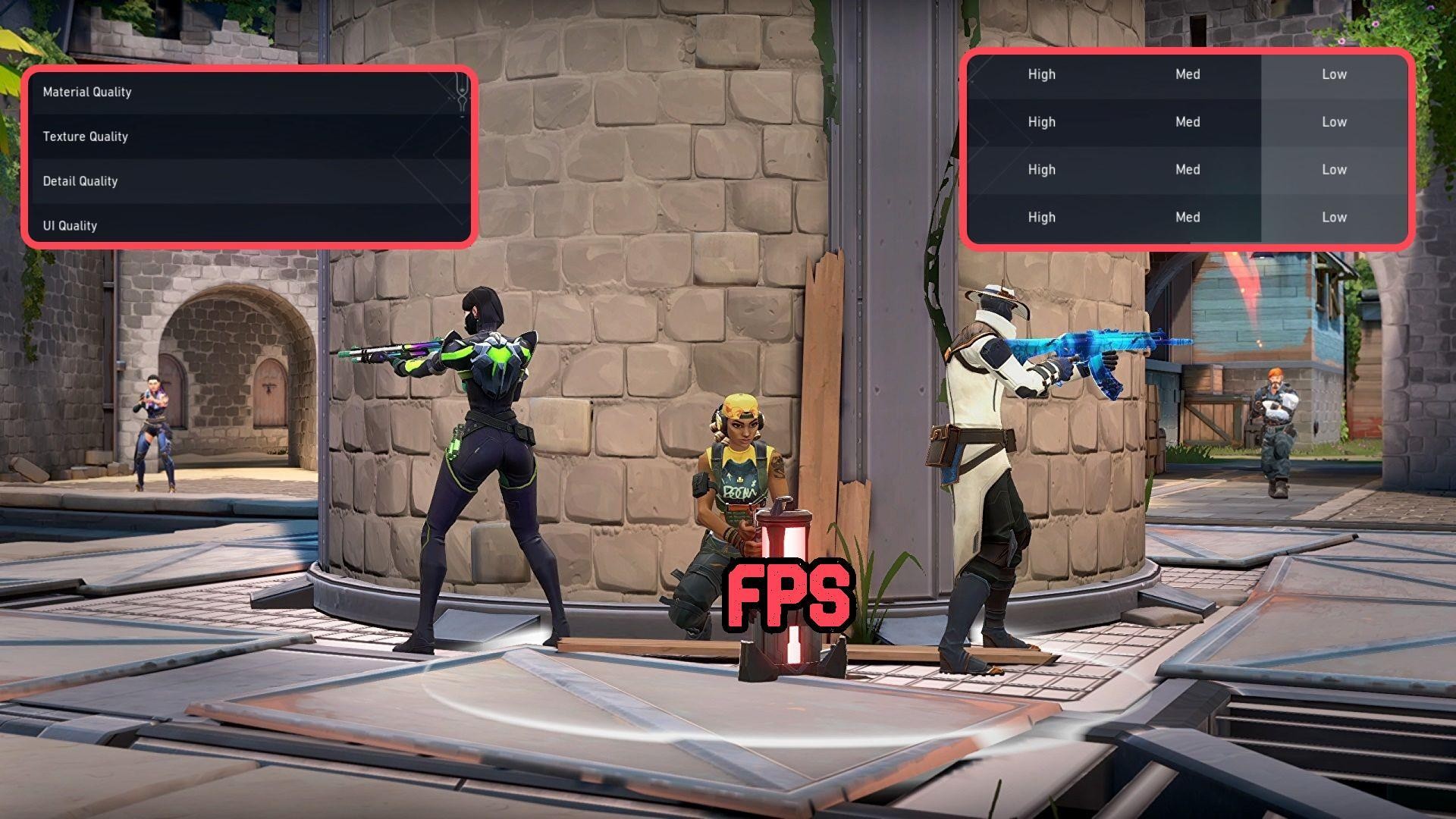
For a competitive game like Valorant, consistent frame rates and a clear view matter most. Running lower settings that strip away extra detail, such as foliage, complex shadows, and even particle effects that could obscure your view of the enemy, helps ensure performance.
Material quality controls shader complexity. At low, surfaces look flatter and distracting reflections are removed. Medium could also work if low is too much.
Then there’s Texture Quality that affects surface detail. Low or Medium both ensure the cleaner screen necessary to compete.
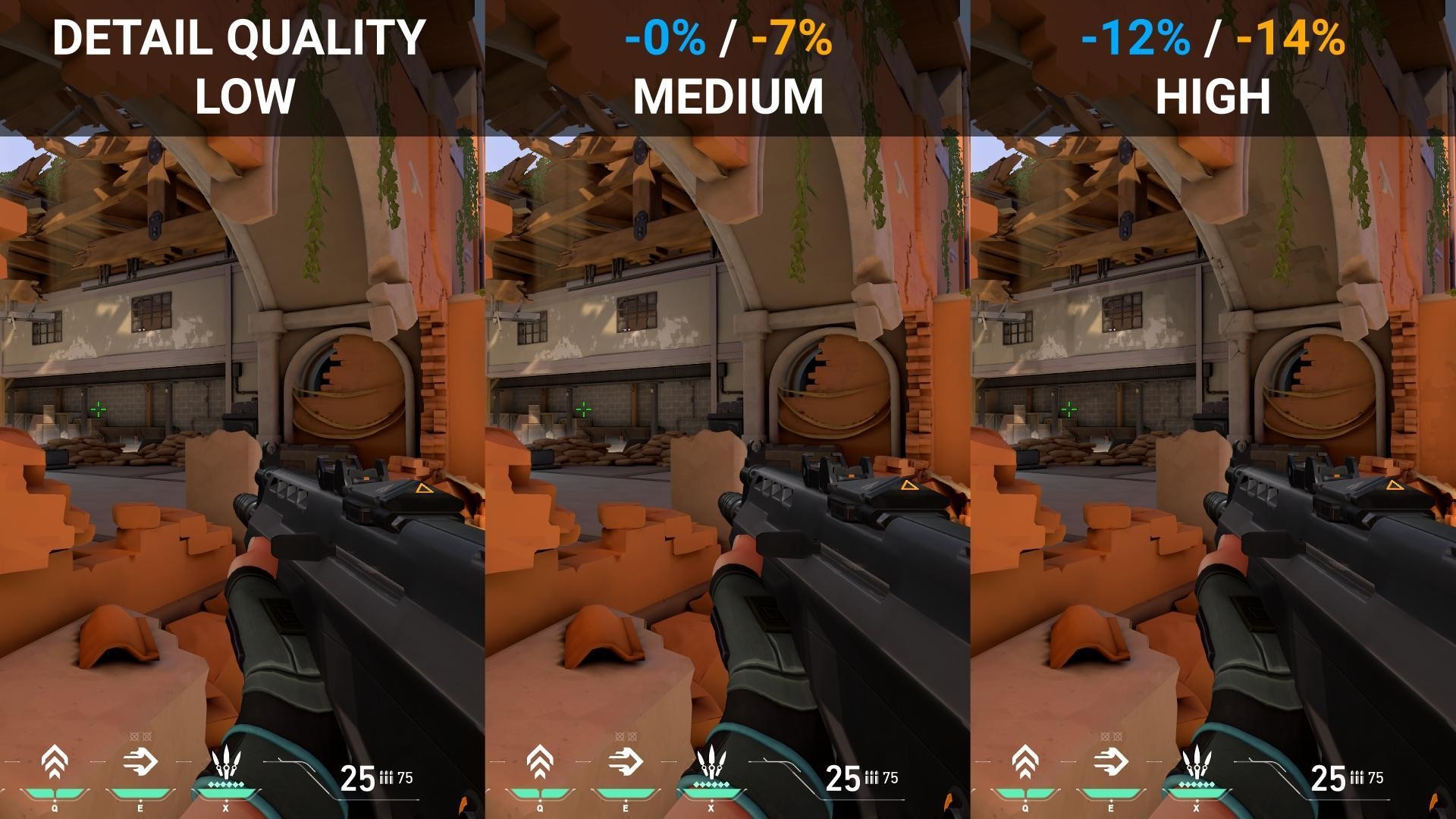
Detail Quality controls background elements and other effects. This requires a lot of resources, so set it to low.
UI Quality affects the menu and HUD detail, and should also be set to low. You don’t need extra detail here when you’re locked in to winning the match.
The Toggles That Matter
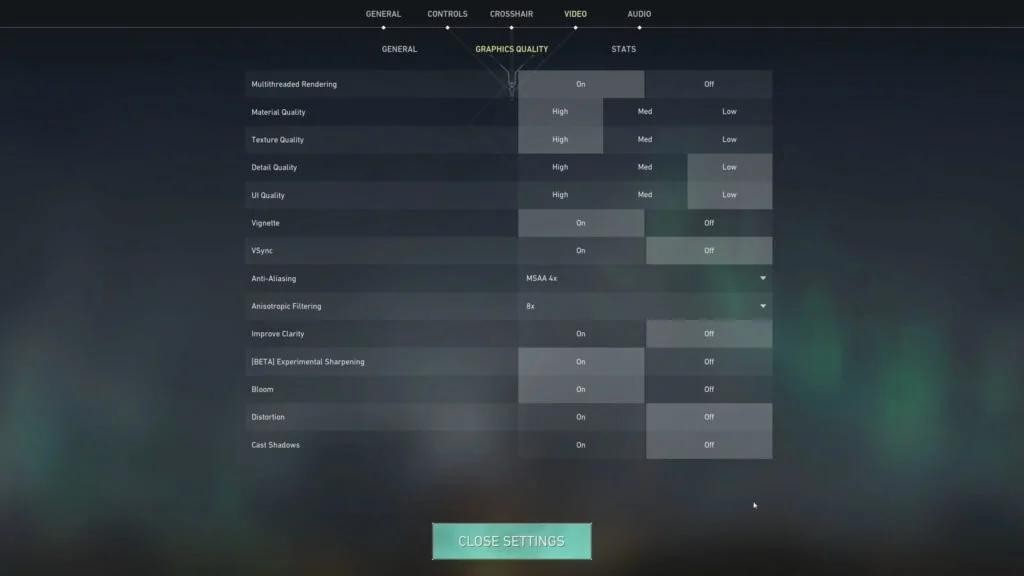
VSync Off. This helps clean up the frame animations, but it costs you extra frames, meaning input lag, which you don’t need. If you’re experiencing screen tearing, a FreeSync or G-Sync monitor will solve the problem without costing you extra.
Anti-Aliasing at MSAA 4x. Keeping this on at this setting smooths out jagged edges without impacting your game.
Anisotropic Filtering at 4x to 16x. This too has a low impact on resources. Since it sharpens textures from different angles, it improves visibility along long sightlines, making it useful to keep on.
Improve Clarity On. General image sharpening with almost no performance cost.
Bloom, Vignette, Distortion: Off. These are all purely cosmetic so you don’t need them for competitive matches. Bloom brightens areas, Vignette darkens screen edges, and Distortion warps the screen during explosions.
Mouse Sensitivity and DPI Settings
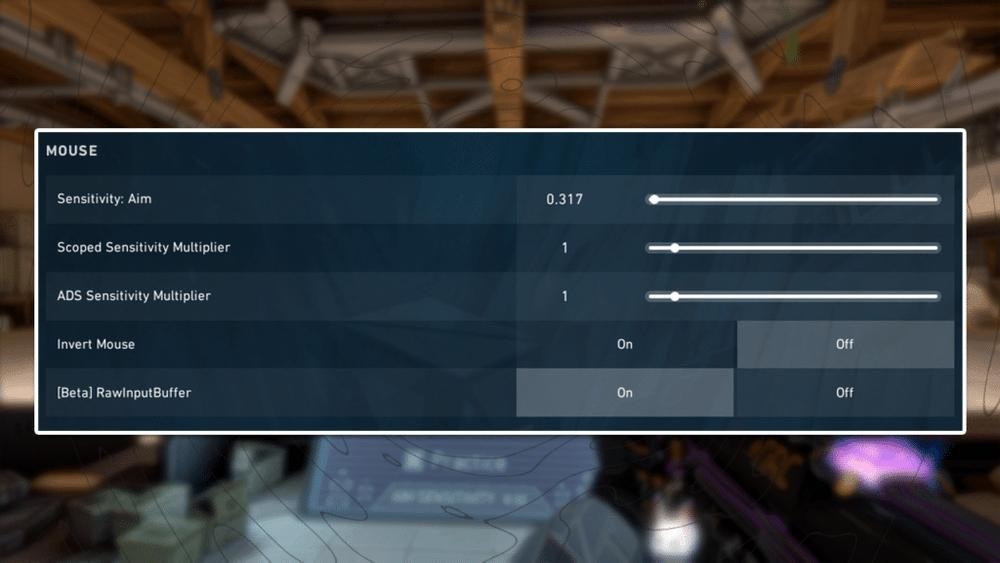
The right sensitivity helps your crosshair placement. But this is also a very personal setting, making it difficult to find a clear consensus. With data from hundreds of pro players, we can still draw certain patterns.
About half of all Valorant Pros use 800 DPI, and 40% use 400 DPI. In-game sensitivity works best between 0.3 and 0.5 at 800p, giving an eDPI range of 240 to 400. But this is a highly personal setting, so use this as a guideline to work out your preferred setting.
Understanding eDPI
eDPI or Effective Dots Per Inch is your real sensitivity setting, obtained by multiplying the mouse DPI by the in-game sensitivity setting. This means that an 800 DPI and 0.4 sensitivity setting and a 400 DPI and 0.8 sensitivity setting both have an eDPI of 320, so they feel pretty much the same in-game.
Among Valorant pros in 2026, the average eDPI sits at 280 to 350. This range gives enough speed for clearing angles and 180-degree flicks without sacrificing precision for headshots at range. An eDPI below 200 under-rotates, while above 500 leads to overflicking.
What the Pros Actually Use
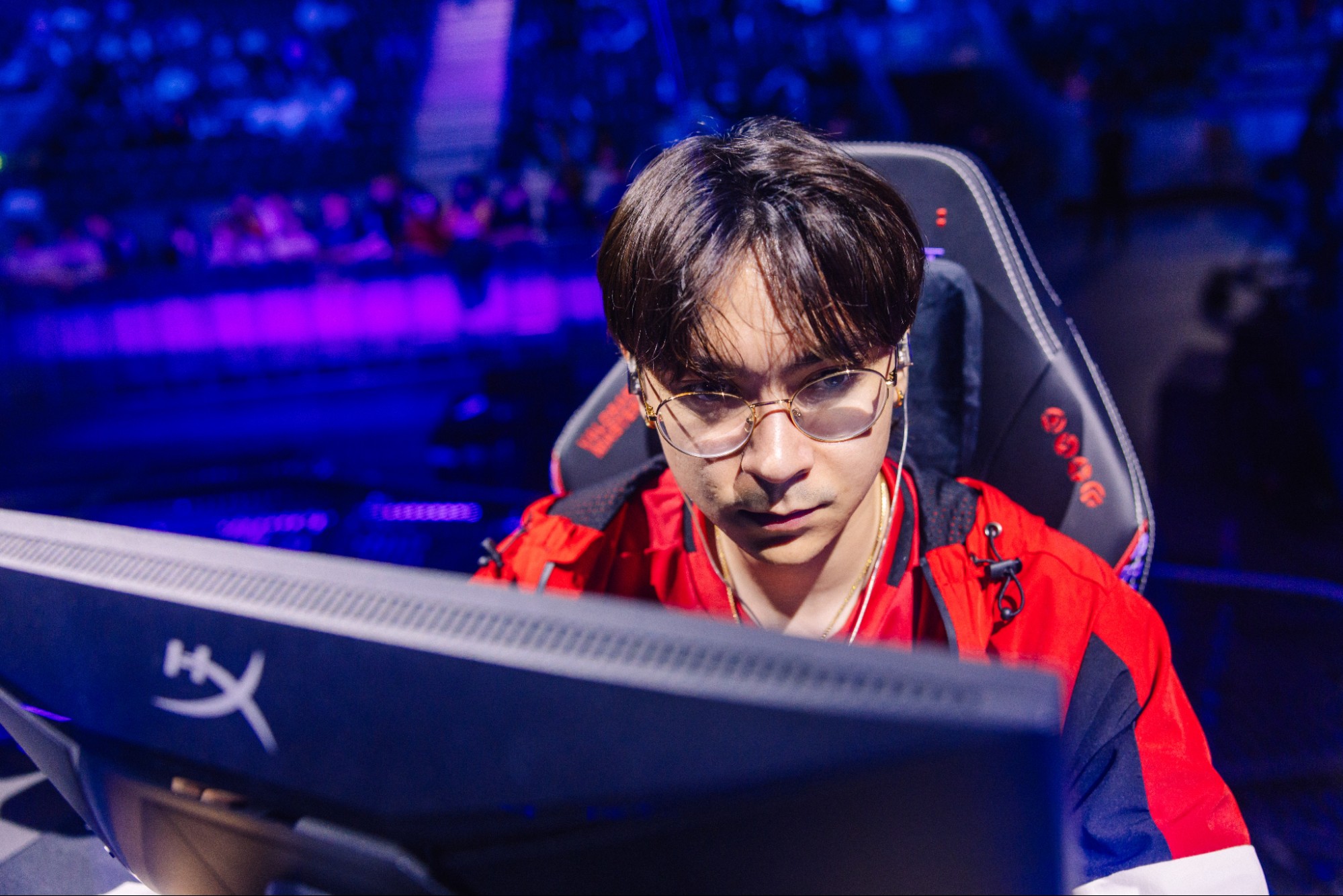
TenZ uses 1600 DPI with 0.2 sensitivity for a 320 eDPI. He uses that with a Lamzu Atlantis Mini Pro (49g) and runs a ZOWIE XL2566K at 360Hz. Despite constantly tweaking settings, his eDPI stays within the 280 - 340 range.
Demon1 has a similar eDPI range. Start with 800 DPI and 0.4 sensitivity, then adjust a bit at a time until your crosshair control gets more precise.
Scoped Sensitivity and Polling Rate
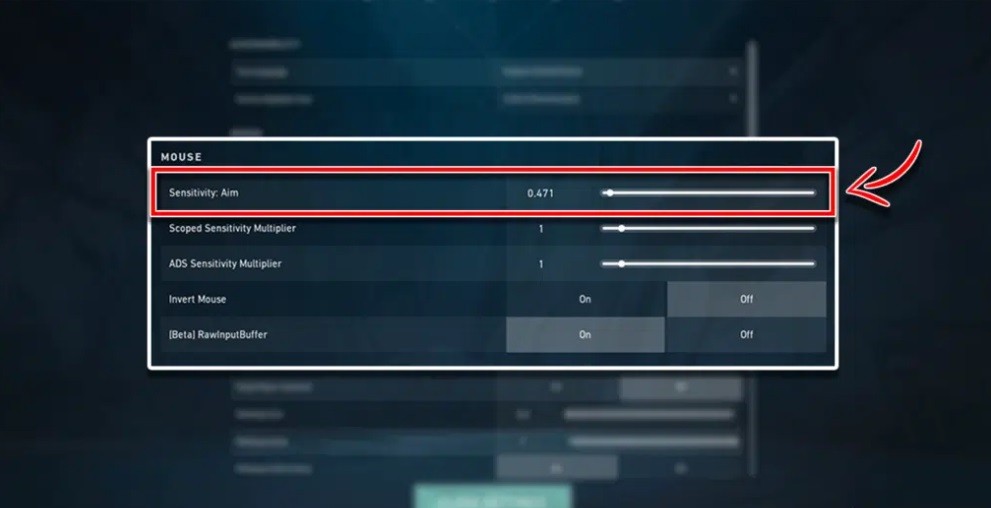
76% of pros keep scoped sensitivity at 1.0, especially important for Operator-heavy agents like Jett or Chamber. Some drop the setting to 0.9 for finer adjustments. Polling rate usually defaults to 1000 Hz, though some modern mice, like those from Razer or Lamzu, offer up to 4000 Hz; there isn’t much of a difference.
Tuning your settings takes time and effort. If you’d rather focus on refining your play rather than going through the slog of low-ranked play, consider a Valorant boosting service, and save time for what truly matters.
Crosshair Settings Used by VALORANT Pros
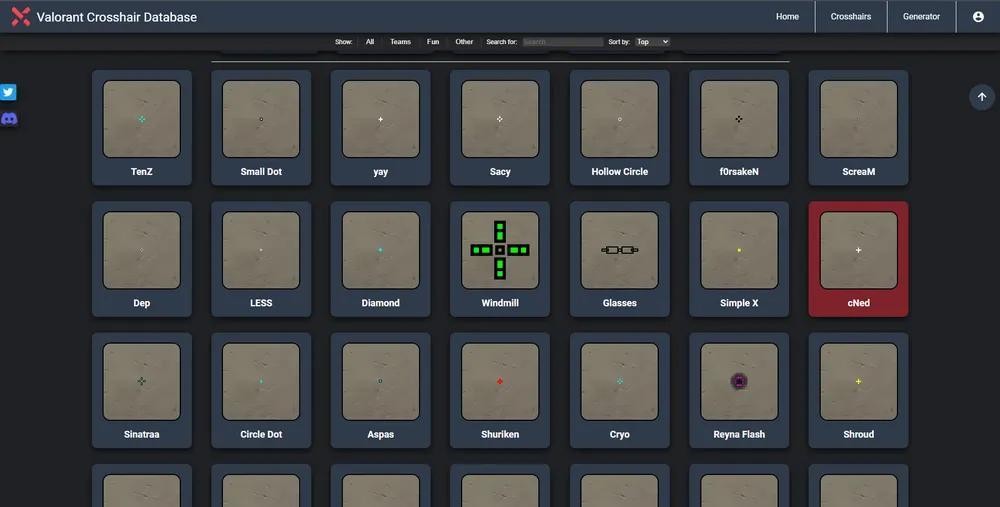
The crosshair matters more than its size would have you believe. Whether it blends into the screen or pops against other details, it affects your game and your accuracy.
Color and Visibility
Most pros use high-contrast colors that stand out against any backdrop, with cyan (Color Code 5) the most popular, followed by white and green. Avoid orange and red, as they blend into several map color schemes and could disappear against walls on maps like Bind and Ascent.
Style and Size
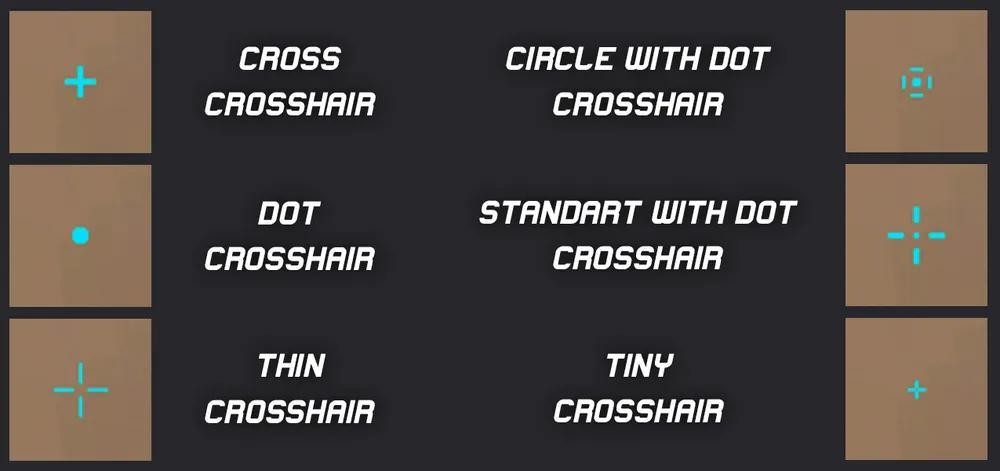
The classic is still most popular, a small crosshair with inner lines and no dot. Keeping small enough to place on heads, but large enough to track using your peripheral vision, is ideal. Turn off indicators for movement and firing errors to use a static reticle that lets you stop and shoot.
Try These Pro Crosshair Codes
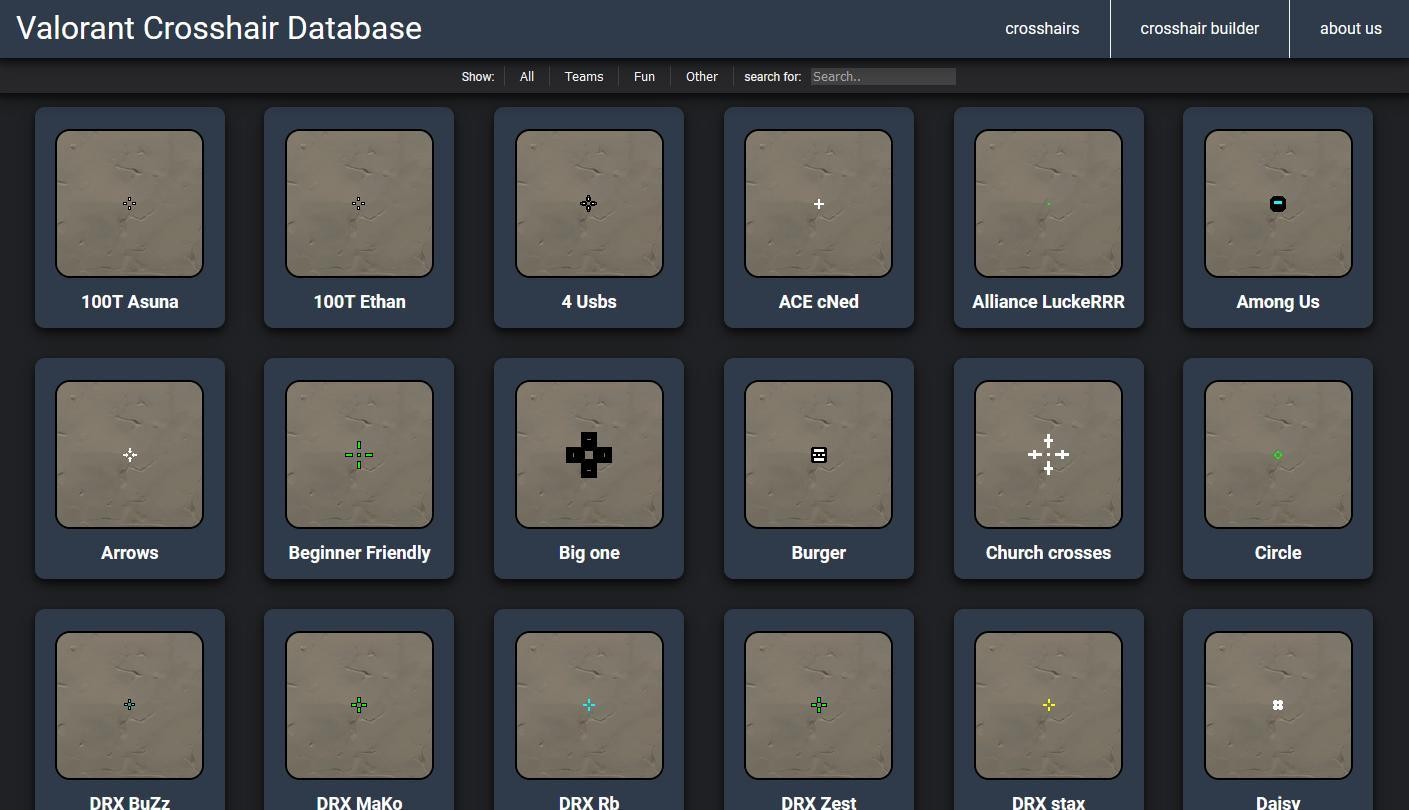
Check out the best Valorant crosshairs used by pro players here. It covers the logic behind each style along with a code to use. To import codes, go to Settings > Crosshair > Import Profile.
Here are a couple of popular ones to get started:
TenZ’s Crosshair: 0;s;1;P;c;5;h;0;m;1;0l;4;0o;2;0a;1;0f;0;1b;0;S;c;4;o;1
Shroud’s Crosshair: 0;P;o;0.506;d;1;z;1;0t;1;0l;4;0o;2;0a;1;0f;0;1b;0
Audio Settings for Competitive Play
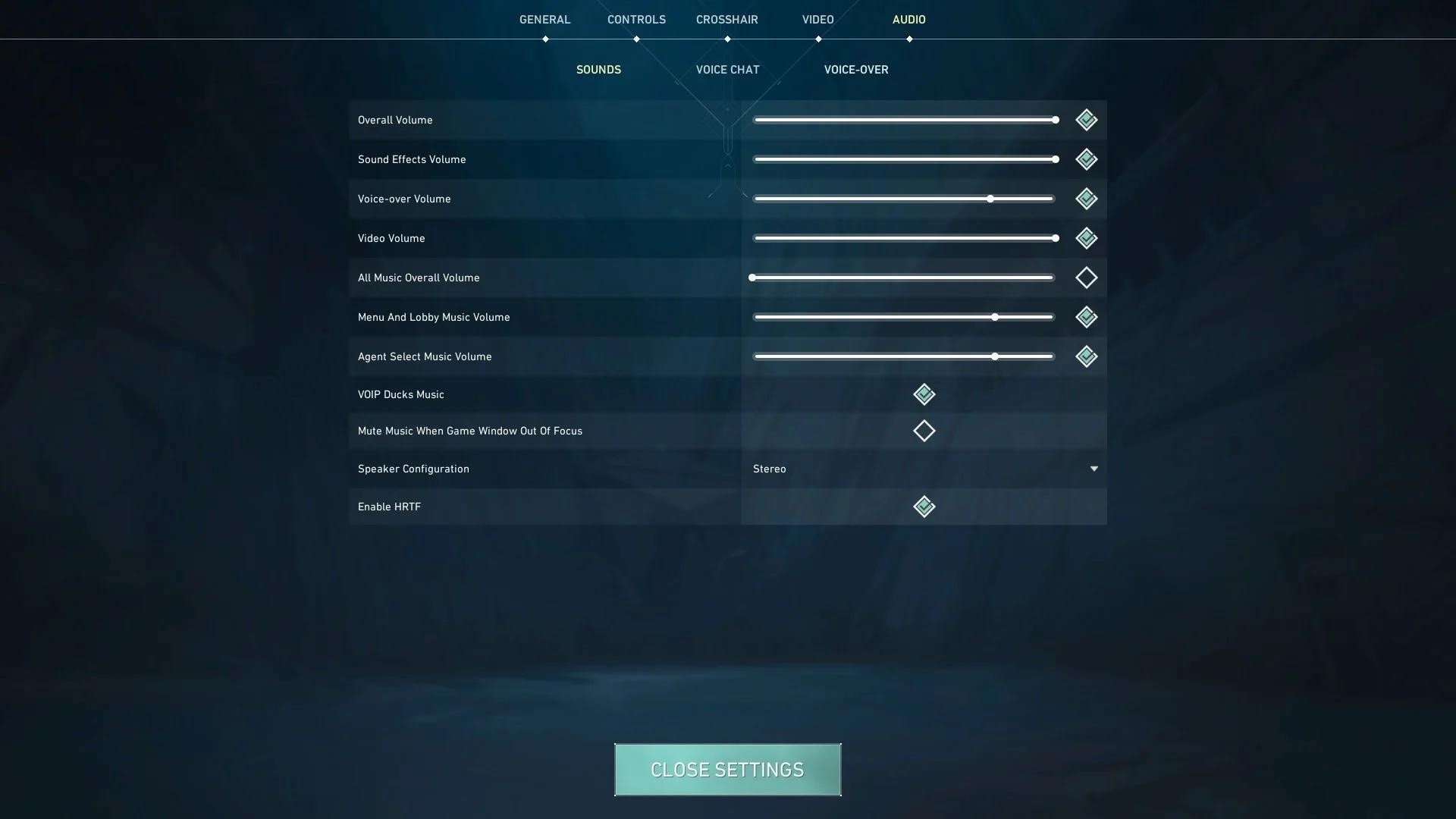
Auditory information is just as important, with footsteps, ability cues, and weapon reloads all giving important insight into the enemy’s position. Bad audio settings could cost you the match.
HRTF is Non-Negotiable
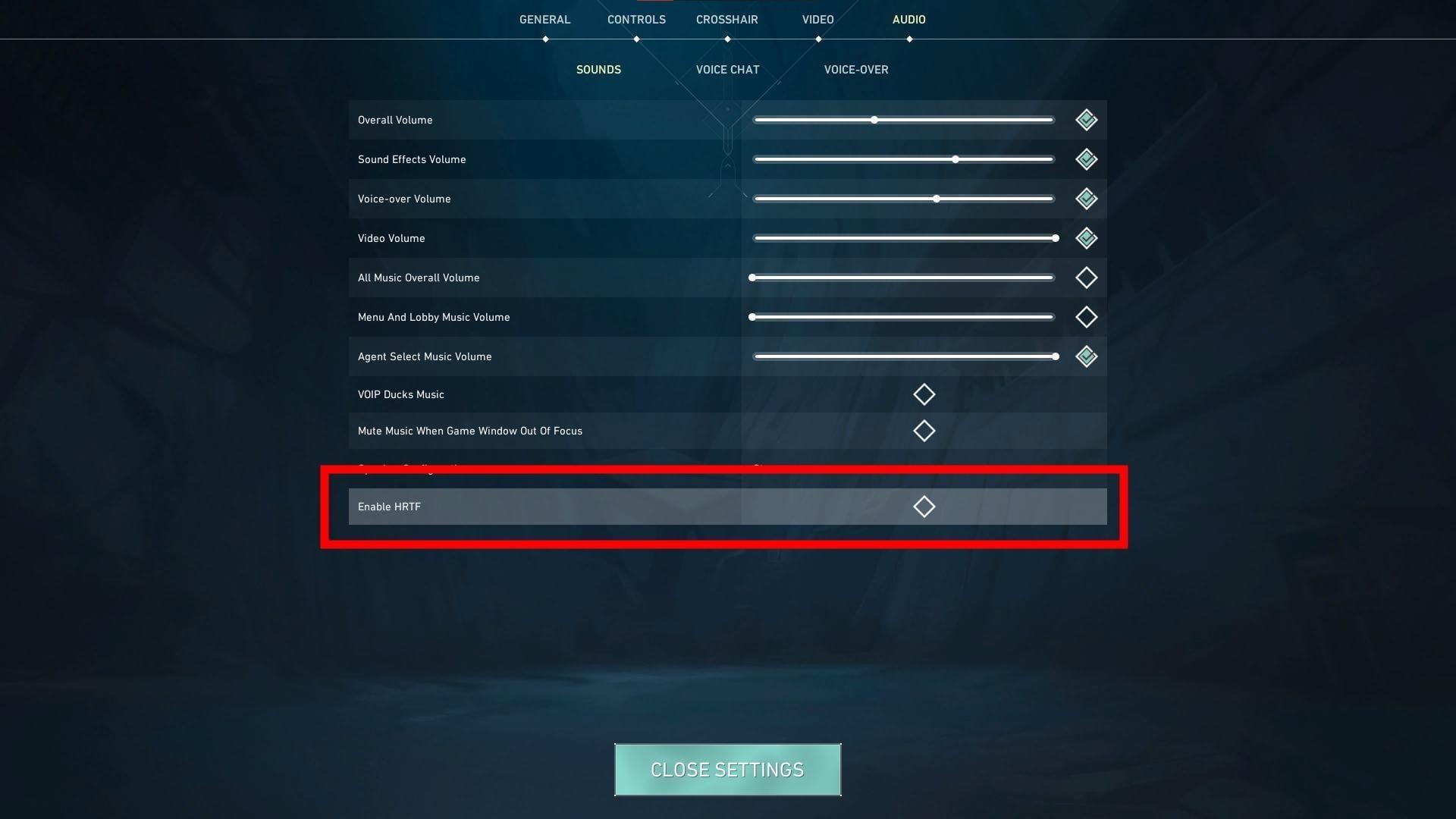
HRTF (Head-Related Transfer Function) must be turned on to pinpoint directional sources of sound. This conflicts with other audio processing like Dolby Atmos, so turn all those off.
Volume Levels
Keep the Master Volume at 50 to 70%. Set Sound effects at 100%, Voice-Overs at 50%, and Music at 0 to 10%.
In-Game Settings That Give You an Edge
Minimap
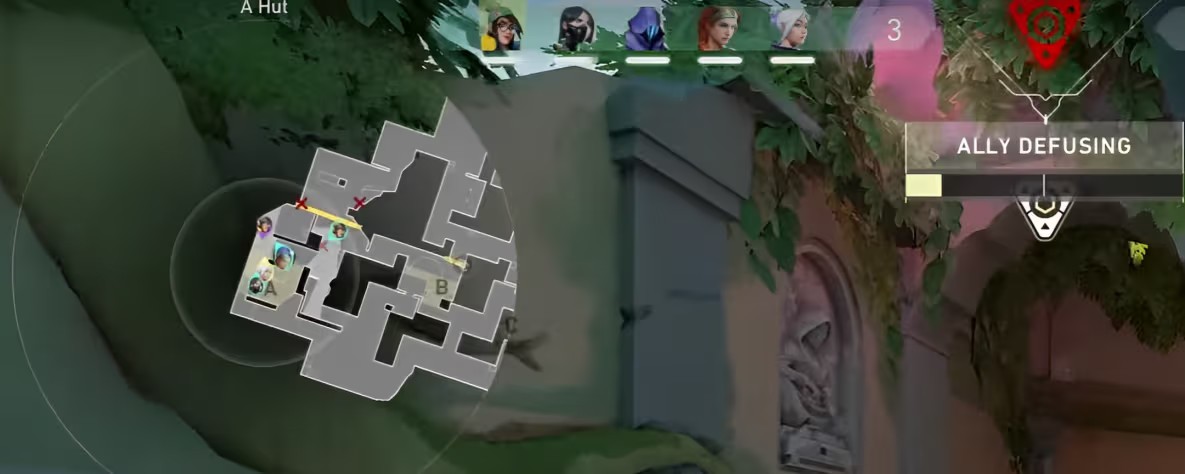
Set to rotate, to translate positional information immediately.
Keybinds
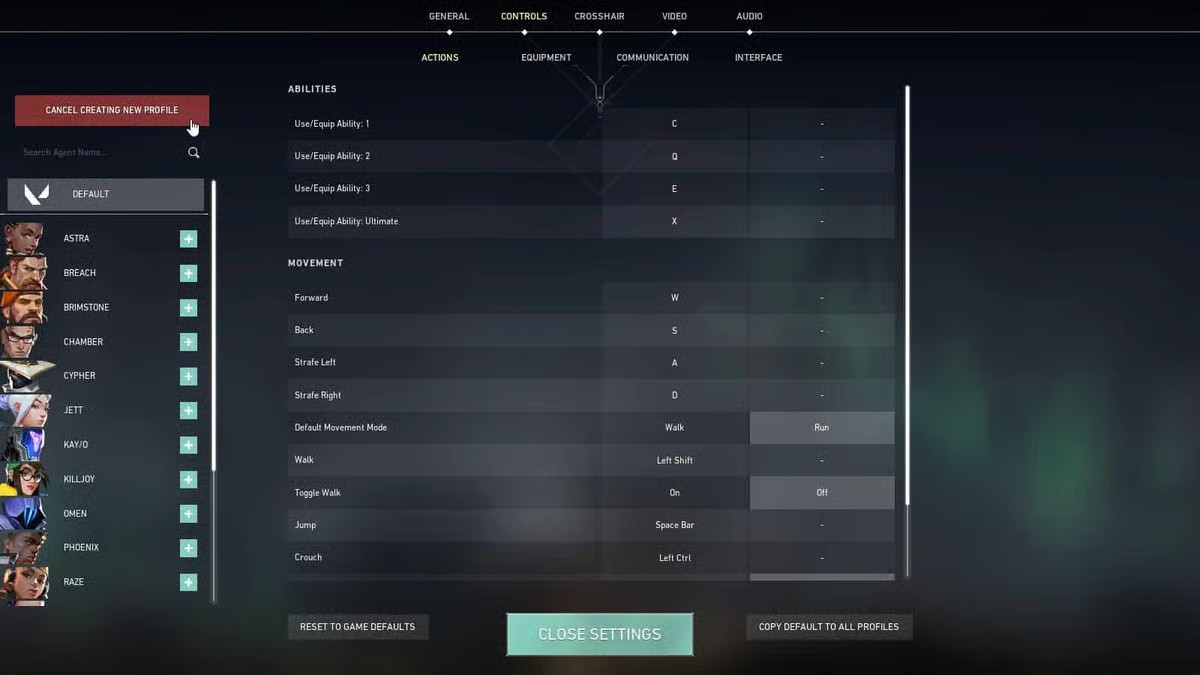
Keep everything at default, except for two. Bind “Walk” to a side mouse button, then assign your most used utility key to more accessible keys like C and Q.
PC Settings Outside VALORANT
Windows Settings
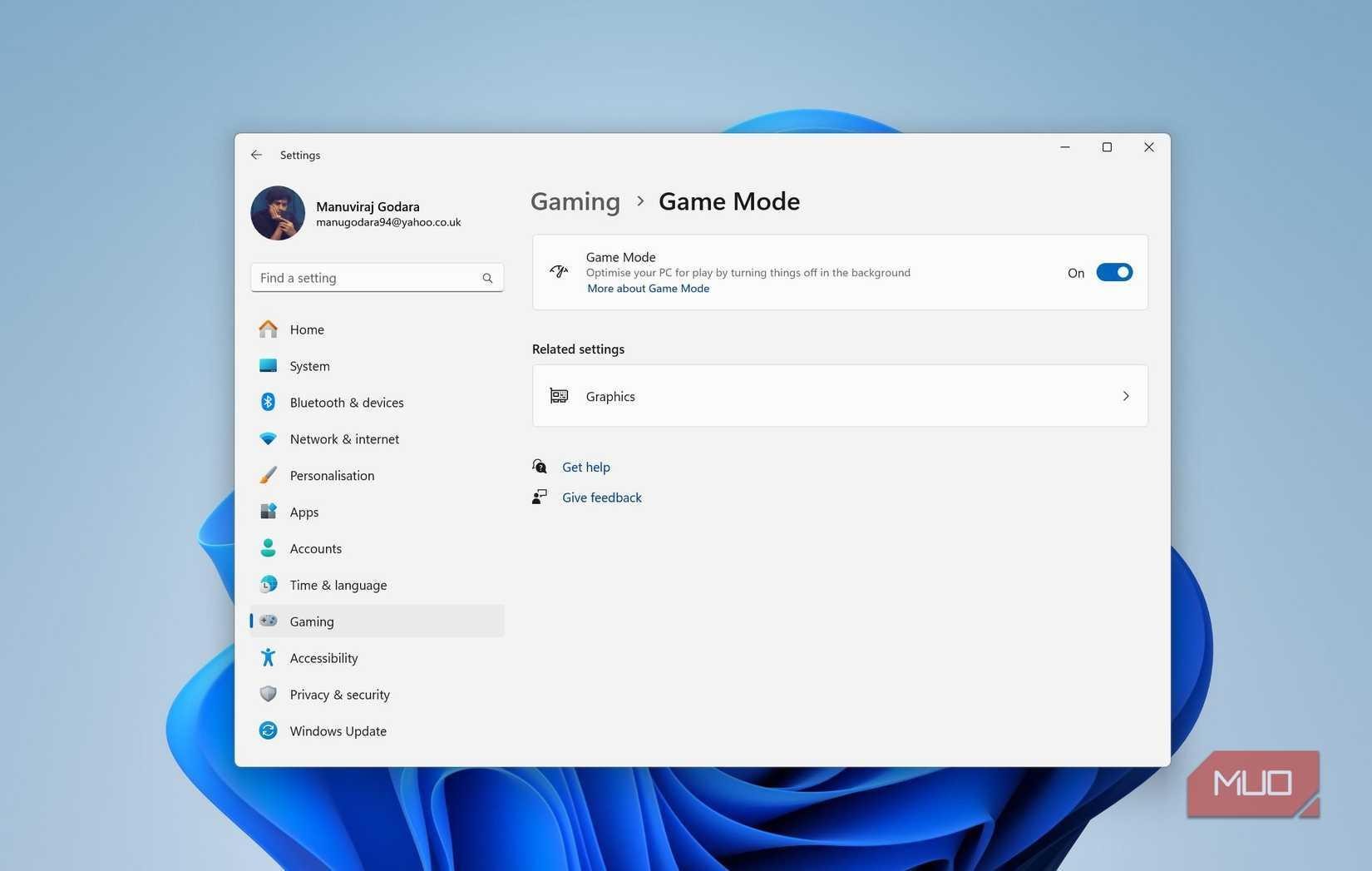
Ensure Hardware-Accelerated GPU scheduling is enabled. Go to Settings > System > Display > Graphics > Default Graphics Settings. Also, turn Game Mode on, which works really well now.
GPU Driver Settings
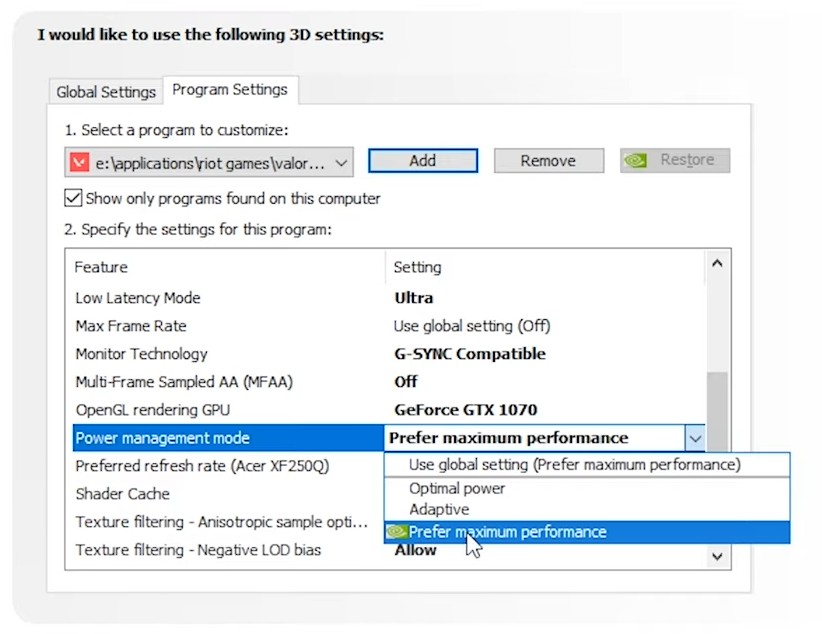
Always update your NVIDIA or AMD drivers. Set NVIDIA Power Management to “Prefer Maximum Performance” for Valorant. For AMD, enable Radeon Anti-Lag.
Set your monitor refresh rate to maximum. Once your settings are locked in, browse Valorant accounts to go straight to competitive play.
Fixing Common VALORANT Performance Issues
Even after applying the ideal game settings, you can still run into various problems. Here are some of the most common ones, and how to address them:
- Sudden FPS drops mid-match: Often caused by thermal throttling. If CPU temps reach 90, improve your airflow.
- Stuttering at high FPS: Often RAM-related. If you’re using a single RAM stick, add a second one.
- Input lag, even with Reflex enabled: Often from other software. Check Discord overlays, Steam, or Xbox Game Bar. Ensure these are all disabled.
Check out our Valorant system requirements guide, which covers the hardware you need at varying price points.